The Apple HEIC Trap: Why Your iPhone Photos Don't Play Nice with Windows
If you've ever transferred photos from your iPhone to a Windows PC only to find a folder full of files you can't open, you've hit the HEIC trap. Here's why it happens and how to fix it for good.
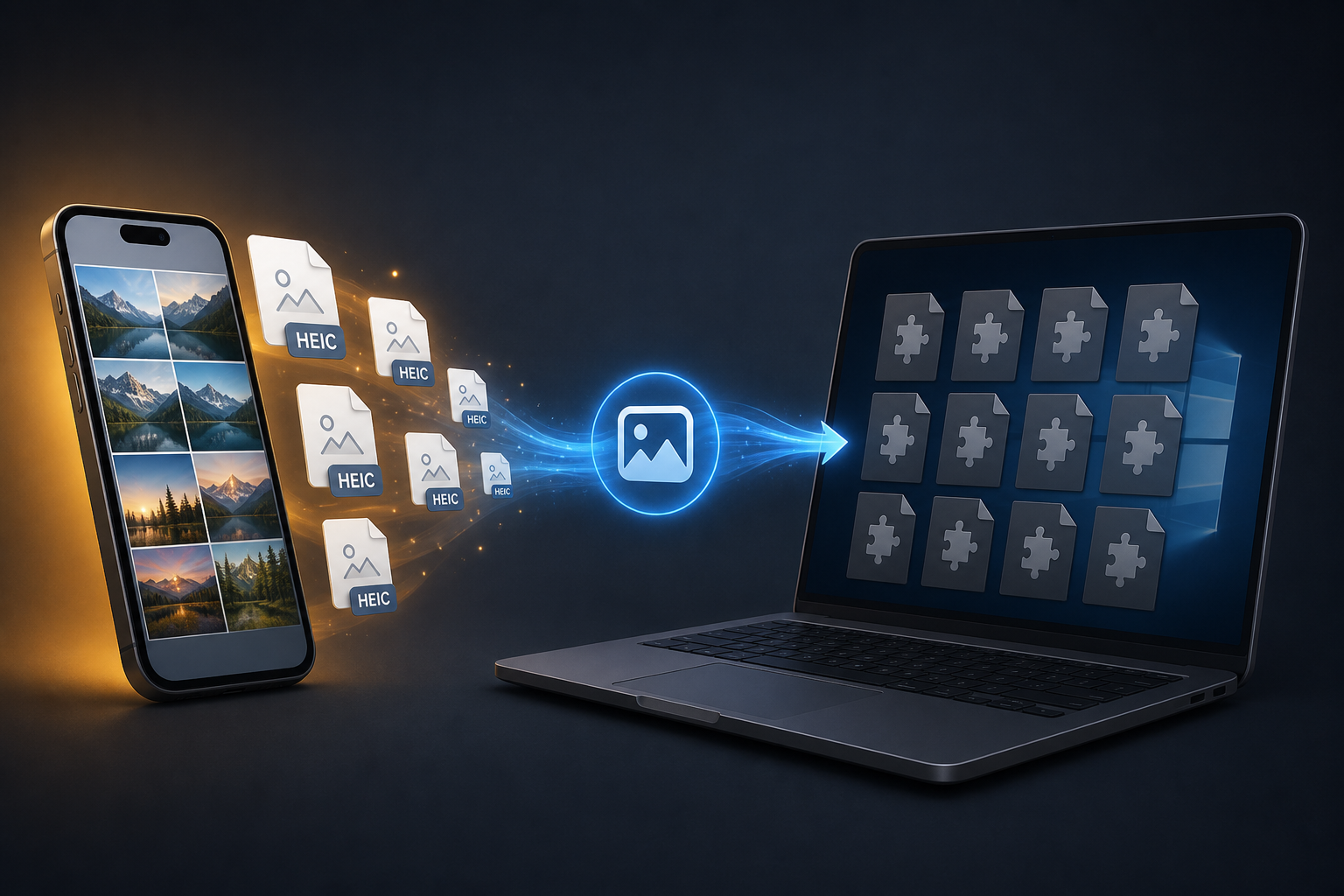
If you've ever transferred photos from your iPhone to your Windows PC only to find a folder full of files you can't open, you've encountered the "HEIC Trap."
In 2017, Apple made High Efficiency Image Coding (HEIC) the default format for iOS. On paper, it was a brilliant move: HEIC files are about half the size of standard JPEGs while maintaining the same—or better—image quality. For iPhone users, that meant thousands more photos could fit on their devices.
But there was a catch that Apple didn't emphasize: the rest of the world wasn't ready.
A Frustrating Wall for Windows Users
While Apple's ecosystem handles HEIC seamlessly, Windows has struggled to keep up. Even today, many Windows users can't view, edit, or share their iPhone photos without jumping through hoops. Trying to upload a HEIC file to a legacy work portal, a printing service, or even a local photo editor often results in an "unsupported file format" error.
Microsoft eventually released a HEIF Image Extension, but it's often a paid add-on or a clunky download that doesn't solve the core problem: interoperability.
The Problem of "Mass Conversion"
The real headache begins when you have thousands of photos. If you've backed up five years of family vacations to your PC, you don't just need to view one photo—you need to convert all of them into a format that actually works with your other software and devices.
Apple's decision to prioritize storage efficiency has left Windows users in a lurch: forced to choose between a format that saves space on the phone and a format that actually works on the computer.
Breaking the Cycle
You shouldn't have to be a tech expert to view your own memories. HEIC Converter was built specifically to bridge this gap. It gives you the user-friendly experience that should have been there from the start—allowing you to convert thousands of files at once, right on your Windows machine, without ever leaving your desktop. Your photos never get uploaded to the cloud; everything runs locally.
Don't let your photos stay trapped in a format that doesn't play nice. It's time to take back control of your media.
Ready to open and convert your iPhone photos on Windows?
Download the free trial or buy Standard and convert your whole library in minutes.