Beyond HEIC: Convert (Almost) Any File Type on Windows
Your folders are rarely just iPhone photos. Here is how one offline app opens and converts almost anything — including the formats Windows leaves as blank icons.
TL;DR
Once you have converted your HEIC photos, you usually find a pile of other old files nearby. Legacy File Converter is the universal app from the same world of local, private conversion: it opens and converts 100+ legacy and modern formats — and even adds a Windows Explorer preview/thumbnail handler for image types Windows ignores. It runs entirely offline. This post is based on the original deep-dive on the Legacy File Converter blog.
You convert a folder of iPhone HEIC photos, then notice the same folder is full of other relics — a designer's PSD, some scanned JPEG 2000 files, an old PowerPoint, even a WordPerfect memo. Switch Explorer to a thumbnail view and many of them are just identical gray icons. The files are perfectly good — Windows simply has no built-in way to draw a preview for them.
The formats Windows won't even preview
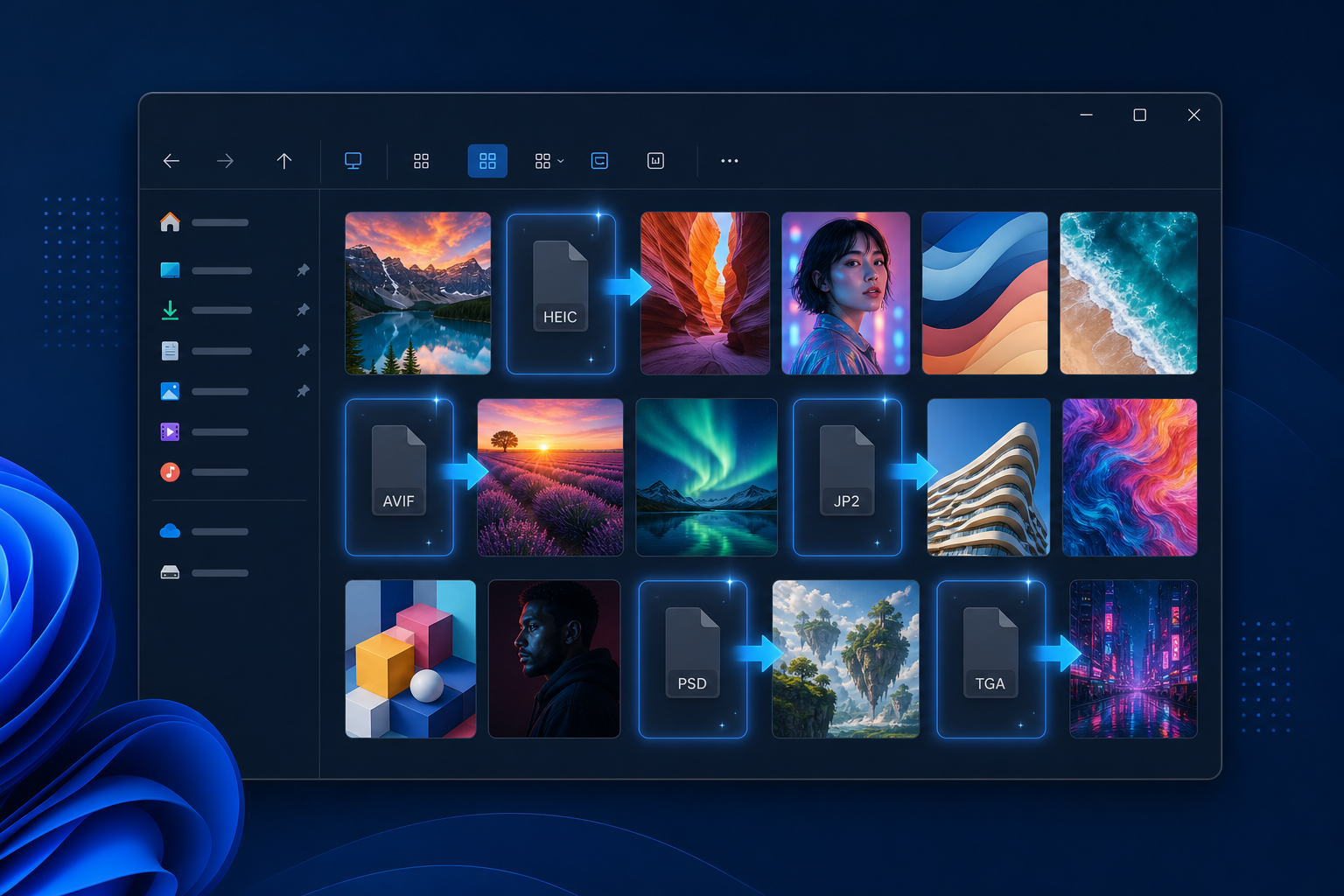
Explorer renders thumbnails and the preview pane through small per-format "handlers." Windows ships handlers for JPG, PNG, and GIF, but several common image types have no handler out of the box — or need a paid add-on — so they fall back to a generic icon:
- HEIC / HEIF — iPhone and camera photos; Windows needs a paid HEVC extension to decode them at all.
- AVIF — next-generation web images; no thumbnail by default on most Windows installs.
- JPEG 2000 (.jp2) — used in archives, scans, and medical imaging; no native preview.
- Photoshop (.psd) — layered design files; Explorer shows only a generic icon.
- Targa (.tga) — game textures and 3D assets; no native thumbnail or preview.
One app that previews and converts (almost) anything
Legacy File Converter is built for mixed archives. When you install it, it registers a lightweight preview and thumbnail handler with Windows so HEIC, AVIF, JPEG 2000, PSD, and TGA finally appear in the file grid and preview pane — and when you are ready, it converts files to the formats people actually use today:
- Images — HEIC, PSD, JP2, TIFF, AVIF, and TGA convert to JPG, PNG, or PDF.
- Documents — WordPerfect, Microsoft Works, AppleWorks, and legacy Office files become DOCX, PDF, HTML, Markdown, or text.
- Spreadsheets & presentations — Lotus 1-2-3, Quattro Pro, and old PowerPoint files become XLSX, PPTX, or PDF.
How it works
There is nothing to configure. Install the app and Windows starts drawing the supported image formats like any other picture. Open any folder, switch to a thumbnail view, and the files render in the grid. Select one and press Alt + P to see the full image in the preview pane — without opening anything. When you want a permanent copy, drag the files in (or right-click them in Explorer) and pick an output format. Whole folders convert in one pass, and nothing is ever uploaded.
Need to convert more than HEIC?
Legacy File Converter handles documents, spreadsheets, presentations, and images across 100+ formats — fully offline, no uploads.