How to Batch Convert HEIC & HEIF Files to JPG on Windows 11
A step-by-step guide to modernizing your entire photo archive in minutes
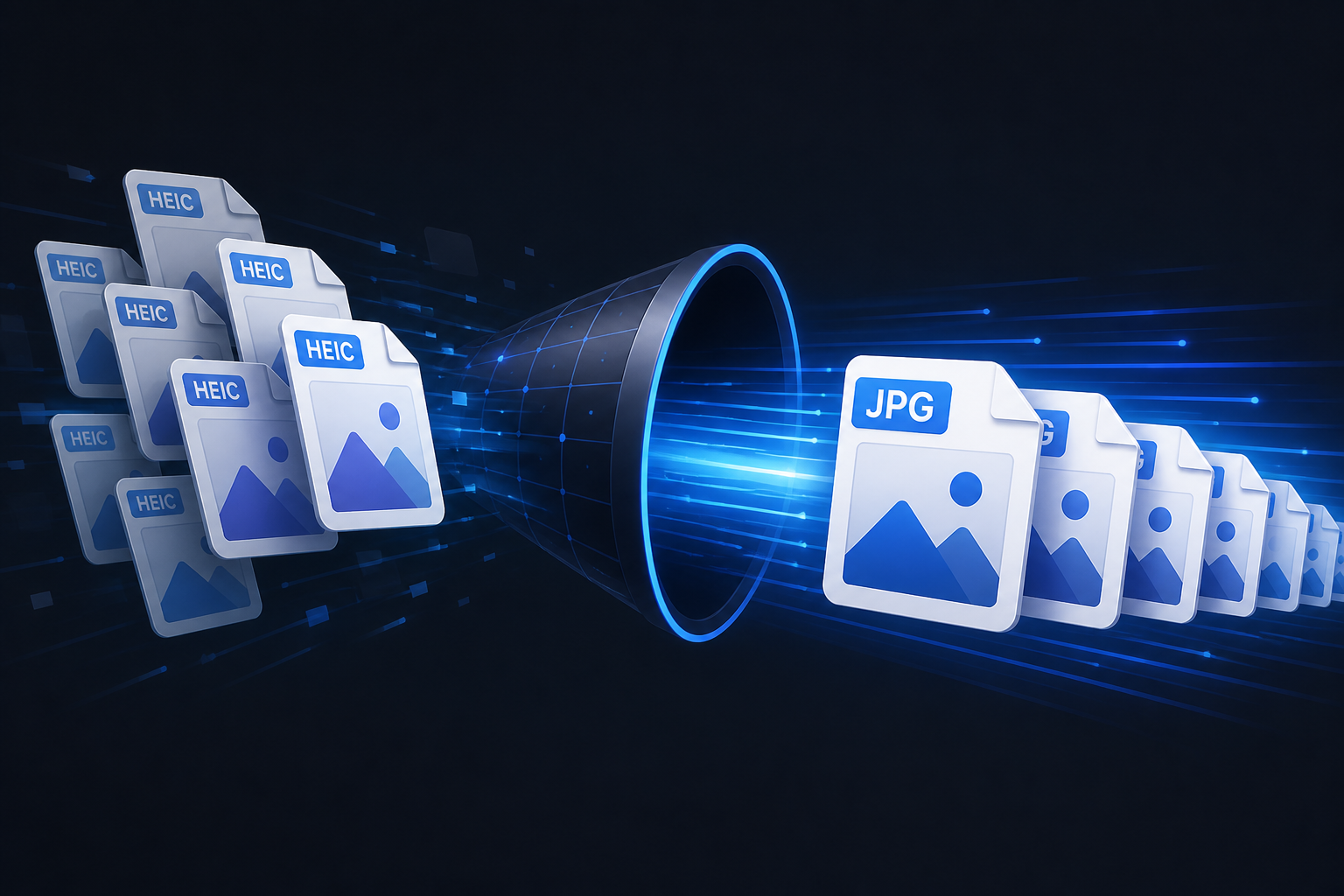
If you've inherited a large archive of iPhone photos or HEIC files from cameras and devices, the prospect of opening and converting each one individually is daunting. Whether you're a photographer, a small business owner, or someone who just wants their photos in a universal format, you need a way to bring these files into the modern era without wasting days of manual work.
In this guide, we'll show you how to automate the conversion of your entire HEIC and HEIF archive to JPG, PNG, or PDF in just three steps using HEIC Converter.
Why Batch Convert Locally?
Before we start, it's important to note why you should avoid web-based converters for large batches:
- ▲Privacy: Personal and family photos shouldn't be uploaded to unknown third-party servers.
- ▲Speed: Converting 500+ files through a browser is slow and prone to timing out.
- ▲Organization: Web tools usually dump your files into a single ZIP file, losing your folder structure.
HEIC Converter solves these problems by running directly on your Windows PC. Your photos never leave your computer.
1 Select Your Source Folders
Open HEIC Converter. You don't need to select individual files (though you can); instead, use the folder browser to point the application at your main photo archive folder.
Pro Tip: If your archive has nested folders (e.g., Year → Month → Event), HEIC Converter will automatically find every .heic and .heif file within those subfolders when you select the top-level directory.
2 Choose Your Format and Output Logic
In the settings panel, select your target format. JPG is standard for universal compatibility and sharing, PNG is best for lossless quality, and PDF works well for document sharing or printing.
Next, choose how you want the files handled:
Alongside Original
Keeps your HEIC/HEIF file and places the new JPG right next to it.
Replace Original
Deletes the old file once the conversion is confirmed successful (best for decluttering).
Export to Folder
Moves all converted files to a new location. You can choose to keep the original folder structure intact or flatten everything into a single folder.
3 Run the Conversion
Click the "Convert" button. You'll see a real-time progress bar as the engine processes your files. Even with thousands of photos, the high-performance engine typically converts each file in a fraction of a second.
Once complete, your HEIC and HEIF files are now fully compatible with Microsoft Photos, Google Drive, social media, and any device or application that supports standard image formats.
Summary
Modernizing your photo archive doesn't have to be a manual chore. By using a specialized local tool, you ensure your data stays private and your folder organization remains professional. HEIC Converter supports both HEIC (Apple's format) and HEIF (the open standard), so you can convert your entire collection in one go.
Ready to try it for yourself?
Download the free trial and convert your first batch today.